


What is RAJUK’s ECPS? A Complete Guide to the Electronic Construction Permitting System
- Jewel Barua
- Jul 7, 2025
- 8 min read

Updated: Jul 9, 2025

In the past, applying for a construction permit in Dhaka meant a lengthy and often confusing paper-based process. To address this, RAJUK (Rajdhani Unnayan Kartripakkha) launched the Electronic Construction Permitting System (ECPS)—a digital platform designed to streamline, simplify, and bring transparency to the entire building approval process.
At Studio 16 Architects, we’ve been working actively with ECPS since its rollout and are helping both local and overseas clients benefit from this transformation.
What Is ECPS?
ECPS stands for Electronic Construction Permitting System, a web-based platform developed by RAJUK under the Urban Resilience Project (URP) and supported by the World Bank.
The address of RAJUK's ECPS is Following:

It allows registered architects, engineers, and landowners to:
Submit building plans and applications digitally
Track approval status online
Receive official notices and updates through the platform
Avoid unnecessary delays and in-person visits
This is now mandatory for all new building approvals in RAJUK-governed areas such as:
Uttara Model Town
Purbachal New Town
Bashundhara R/A
Dhanmondi
Mohammadpur
Rampura
Banasree
Tejgaon
Mirpur
Gulshan
Banani
Mohakhali
Key Purpose of ECPS for Client
Faster Approvals
Digital submissions reduce paperwork and queue times, making the process more predictable.
Transparency & Tracking
Applicants can track every stage of their file—from submission to approval—via dashboard updates.
No Middlemen Required
The system reduces the need for unofficial intermediaries or repeated physical visits to RAJUK.
Secure & Centralized
All documents, drawings, and approvals are stored digitally for future reference.
Features of ECPS
Electronic Construction Permitting System (ECPS) is developed to streamline the permitting process, strengthen monitoring means and enforce compliance.
Integration with NID
Incorporation of Digital Signature
Integration with IAB Database
Integration with IEB Database
Integration with IDEB Database
Online Payment facility for Applicants
Automatic Zone Setup depending on CS/RS/MS Dag number and Mouza name
Fast Remote Construction Monitoring (FRCM) Mobile application
Risk and Structural Evaluation (RISE) Tool for plan checking
Request NOC from External Compliance Authorities (FSCD, DOE, CAA, NHA, KPI & Other relevant Organizations)
Review from Internal Departments of RAJUK (Estate, Law, Architecture, Planning)
How Studio 16 Architects Works with ECPS
As a registered architectural firm with RAJUK, we handle your ECPS-based permit process from start to finish:
Step 01: Land & Document Verification
We verify your land ownership, mutation, and plot registration in RAJUK zones.
Step 02: ECPS Account Management
We manage your project profile and upload all necessary drawings through our licensed architect portal on ECPS.
Step 03: Drawing Submission & Vetting
We prepare and submit:
Architectural, Structural, and MEP Drawings
Fire Safety Plan
Soil Test Reports
BNBC-compliant forms and declarations
Step 04: Follow-up, Feedback & Final Approval
We track feedback from RAJUK officials, make revisions if needed, and ensure permit issuance through ECPS.
Whether you're in Dhaka or abroad, we’ll keep you updated every step of the way.
How to process through RAJUK's ECPS for Planning permit and construction permit
Step 01: Applicant Registration
For Registration, go to Electronic Construction Permitting System website URL https://ecps.gov.bd/ and Click “Register” on the upper right section.

Click “Registration as Individual” link and the system will take the user to the registration page. As shown in Figure 1.2

Enter National ID number and Date of birth and press “Verify” button. As shown in Figure 1.3. ECPS system will fetch data from NID database.

First Name, Middle Name, Last Name and Gender of the applicant will be fetched from NID database. As Shown in Figure 1.4

Applicant will have to enter his e-mail address, mobile number and password and press” Register” button. As shown in Figure 1.5

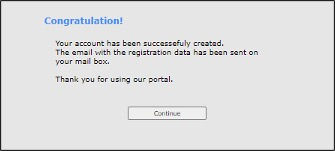
An automatic mail will be sent to the applicants e-mail address and the System will display a message saying the account has been created. As shown in Figure 1.6.
Step 02: Planning Permit (PP) / Land-use Clearance (LUC) Application Filling process
To file an application, go to Electronic Construction Permitting System Portal using the URL
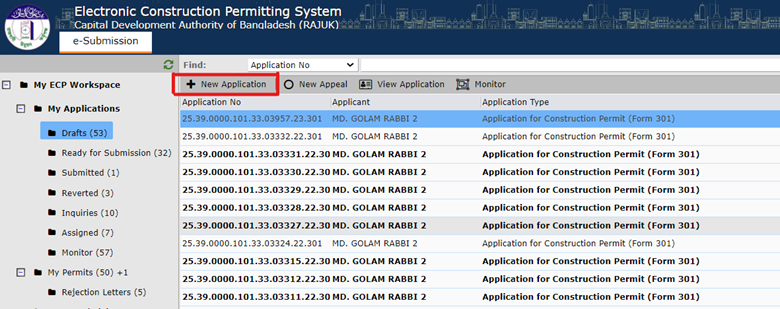
https://ecps.gov.bd/ and then click on “Login” button. Applicant then can login to the system using applicant’s username and password. After logging into the system successfully click on the “New Application” button as shown in the Figure: 2.1.
After clicking on “New Application” the following window will pop-up with the drop-down selection bar for “Application type, Ownership Type” and enter some other information (RS Dag No, Existing Project). Figure: 2.2 shows the information.

If the ownership type is not “Government Land”, then Applicant needs to select the type of application which he would like to file (e.g., Application for Planning Permit) and enter RS Dag No, select Existing Project “No” and then click on the “Next” button as shown in Figure 2.3.

If the ownership type is “Government Land” then select only “Application type and Ownership Type” and click on “Next” Button.
To read the whole Planning Permit (PP) / Land-use Clearance (LUC) Application Filling process , please download :
Step 03: Planning Permit (PP) / Land-use Clearance (LUC) step by step process
Deputy Town Planner (DTP) accesses the Electronic Construction Permitting System Portal using the URL https://ecps.gov.bd and then clicking on “Login” button. Then DTP will provide his/her username and password to login. DTP receives the application for Land Use Clearance certificate when Front desk assistant accepts the application. DTP will find the application in the Incoming section. Incoming files are sorted from Recent to Oldest. DTP will have to click on the Application he wants to proceed with. As shown in Figure 3.1

A new pop-up window will appear when DTP clicks on any incoming application. DTP will have access to six different tabs Assignments, Staff Reviews, Attachments, Applicant Attachments, Applicants’ Clarifications and History. DTP will check all the available information of the application. As shown in Figure 3.2 and 3.3.


In the Stuff Reviews tab DTP will write a review and add attachments. As shown in Figure 3.4

To read the whole Planning Permit (PP) / Land-use Clearance (LUC) step by step process , please download :
Step 04: Constrcution Permit (CP) Application Filling Process
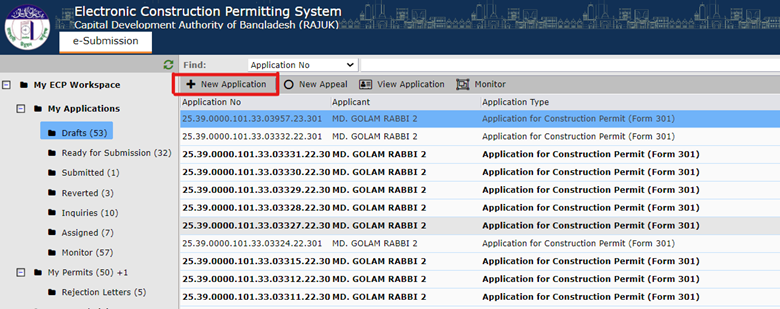
To file an application, go to Electronic Construction Permitting System Portal using the URL https://ecps.gov.bd/ and then click on “Login” button. Applicant then can login to the system using applicant’s username and password. After logging into the system successfully click on the “New Application” button as shown in the Figure: 4.1.
After clicking on “New Application” the following window will pop-up with the drop-down selection bar for “Application type” and some other information. Figure 4.2 shows the information.

Now applicant needs to select the type of application which he would like to file (Ex. Construction permit) and click on the “Next” button as shown in Figure 4.3.

After clicking “Next” the applicant is prompted to another window containing land details as shown in Figure 4.5. Applicant needs to fill up accordingly and then click “Next”.

After providing the Land plot details applicant is prompted to “Next” window containing construction project information (Figure 4.6). Applicant needs to fill the information accordingly and click “Next”.

To read the whole Construction Permit (CP) Application Filling process , please download :
Step 05: Construction Permit (CP) step by step process
Authorized Officer (AO) accesses the Electronic Construction Permitting System Portal using the URL https://ecps.gov.bd and then clicking on “Login” button. Then AO will login to the system using his/her username and password. The authorized Officer receives the application for Construction Permit when Front desk assistant accepts the application. The authorized Officer will find the application in the Incoming section. Incoming files are sorted from Recent to Oldest. Also, there are some sub-folders as per AO’s action on the application. AO will have to click on the Application he wants to proceed with. As shown in Figure 5.1

A new pop-up window will appear when AO clicks on any incoming application. AO will have access to four different tabs Assignments, Attachments, Applicants’ Clarifications and History. AO will check all the available information of the application. AO can check applicant’s details information by clicking on the Applicant name link as shown in Figure 5.2.

After clicking on the link a pop-up will show up containing applicant’s details. AO user can close it by clicking on the “Close” button as shown in Figure 5.3.

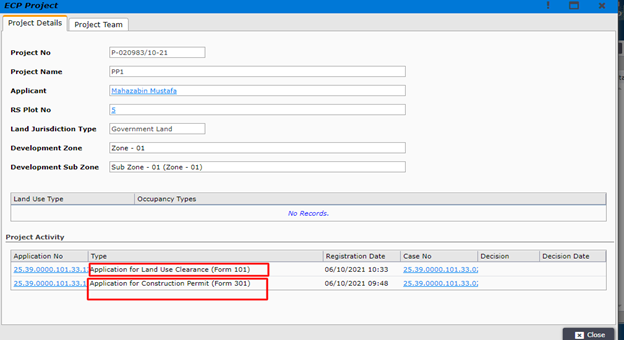
AO can click on the project link to see the main project details as shown in Figure 5.4.

After clicking on the project link the project details window will pop-up as shown in the Figure 5.5. There the links to LUC of the same project can be found. And AO can click on it to check the details of the LUC.
To read the whole Construction Permit (CP) step by step process , please download :
Step 06: Large and Special Project (LSP) Application Filling (if applicable) process
To file a new LSP (Large and Special Project) application, go to Electronic Construction Permitting System Portal using the URL https://ecps.gov.bd/ and then click on “Login” button. Applicant then can login to the system using applicant’s username and password. After logging into the system successfully click on the “New Application” button as shown in the Figure: 6.1A & 6.1B


After clicking on “New Application” the following window will pop-up with the drop-down selection bar for “Application type” and some other information (Ownership Type, RS Dag No) as shown in Figure: 6.2A & 6.2B


To read the whole Large and Special Project (LSP) Application Filling process , please download :
Step 07: Large and Special Project (LSP) Process (if applicable) step by step process
Director Development Control (DDC) accesses the Electronic Construction Permitting System Portal using the URL https://ecps.gov.bd and then clicking “Login” button. Then DDC will login to the system using his/her username and password. Director Development Control (DDC) receives the application when the Front desk assistant accepts the application. Director Development Control will find the application in the Incoming section. Incoming files are sorted from Recent to Oldest. DDC will have to click on the Application he wants to proceed with. As shown in Figure 7.1.

A new pop-up window will appear when DDC clicks on any incoming application. DDC will have access to five different tabs Assignments, Staff Reviews, Attachments, Applicants’ Clarifications, and History. DDC will check all the available information of the application. DDC can check the applicant’s details information by clicking on the Applicant name link as shown in Figure 7.2.

After clicking on the link a pop-up will show up containing the applicant’s details. DDC user can close it by clicking on the “Close” button as shown in Figure 7.3.

DDC can click on the project link to see the details of the main project as shown in Figure 7.4.

To read the whole Large and Special Project (LSP) step by step process , please download :
Step 08: Construction Start Notice
For doing “Construction Start Notice” applications need to follow the below step.
Step 1: Login as applicant and click on the “Construction Start Notice ”. Check Fig 8.1

After clicking on “Construction Start Notice,” you will be asked if the approved CP/RDC has been done by ECPS. If your answer is “No”, then follow the below steps and if your answer is “Yes” then follow from Step 9.

To read the whole "Construction Start Notice" step by step process , please download :
Conclusion
The Electronic Construction Permitting System (ECPS) is a step forward in modernizing Dhaka’s real estate and architectural ecosystem. It makes approvals smarter, faster, and more transparent.
At Studio 16 Architects, we not only design your building—we ensure it gets permitted without hassle.
Need ECPS support for Your Building Project? Let’s Get Started.
www.studio16architectsbd.com | info.s16a@gmail.com | +8801717222907
Reference:
https://ecps.gov.bd/permits/land-use-clearance/luc-process-manual/
https://ecps.gov.bd/permits/construction-permit/cp-process-manual/
https://ecps.gov.bd/permits/special-project/special-project-process-manual/
https://ecps.gov.bd/user-guides/application-filing/pp-application-filing/
https://ecps.gov.bd/user-guides/application-filing/cp-application-filling/
https://ecps.gov.bd/start-construction-notice/
Downloads :
Planning Permit (PP) / Land-use Clearance (LUC) Application Filling process
Planning Permit (PP) / Land-use Clearance (LUC) step by step process
Constrcution Permit (CP) Application Filling Process
Construction Permit (CP) step by step process
Large and Special Project (LSP) Application Filling (if applicable) process
Large and Special Project (LSP) Process (if applicable) step by step process
Construction Start Notice


The article highlights an important topic for many households. Access to professional eldercare services in London, UK can help older adults maintain independence while receiving the support they need for daily living.
Packing an entire home can feel overwhelming without the right support. Choosing a professional Moving Packing service allows homeowners to stay organized, save time, and focus on other important aspects of their relocation.
Implementation of nec contracts within the engineering sector necessitates a deep dive into the technicalities of the Compensation Event process. Accurate assessment of both time and cost impacts must be done concurrently, which challenges traditional retrospective claims methodologies. International federation guidelines (FIDIC) offer a contrasting view on risk allocation that clarifies why the NEC approach is uniquely suited for complex civil works. One particular mechanism in the adjudication process remains a significant point of contention for subcontractors.
day trading strategies, Thank you so much for your kindness and support. I truly appreciate the time, effort, and care you shared. Your help made a real difference and means more than I can say. I’m grateful for you and everything you’ve done, and I will always remember your generosity and warm spirit.
Effective use of practice or practise demonstrates familiarity with regional English differences in professional writing.